Using Aspen Go in the Staff portal
Aspen Go is a quick, convenient way to view district and school communications and complete tasks using your phone or tablet.
When you log on to Aspen Go, your homepage appears, listing your school's and district's announcements.
Use the following table to navigate:
|
Tap |
To... |
|---|---|
|
|
See district and school announcements. View today's classes, with links for each class to take attendance, enter scores, and send email to students. Tap the left and right arrows to view yesterday's or tomorrow's classes. From other screens, click Home to return to the Home Page. |
|
|
See Active tasks to complete. At the drop-down, select Closed and then View to see tasks you already completed. |
|
|
Complete and submit school forms, such as the conduct referral form. |
|
|
Take and post class attendance, either alphabetically by student name or by seating chart. |
|
|
Displays a roster for the selected class section. Includes the student's name, local ID, YOG, homeroom, email address, alerts (if any), and class enrollment status. |
|
|
Enter assignment grades for students in the selected class section. Can also choose to publish scores or lock them. |

|
View district and school notifications. (The Notifications icon appears in the banner.) |
|
|
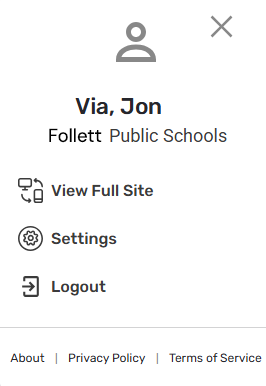
Tap the user icon to select an option from the pop-up:
|







|
Note: If you can't access Aspen Go, contact your Aspen system administrator, who can do the following:
|